Performer · Web + Mobile
How Peak Coach works for you
Peak Coach diagnoses where mental performance breaks down under pressure and surfaces the tools that address it. This page covers what every screen does, what the system is doing behind it, and how the product moves you toward independence rather than indefinite use.
Tier: Free → ReFrame ($19.99/mo) → ReFrame Pro ($39.99/mo)
Quick start
- Create your account — web at app.peakmindmechanics.com or the iOS app. Email, Google, or Apple; the same account works on both.
- The guided Home experience shows the next setup step that is still needed: your coaching direction, assessment, Your Arena and permission choices. Follow its Continue action; completed steps are checked from your saved record, so an assessment or Arena entry completed elsewhere can count. You can stop and return. Your Arena remains editable from Me → Your Arena. Older accounts and accounts that deliberately turned guidance off can use the regular app without repeating the guided path.
- Take the Performance Scan — self-administered, ~7 minutes, no charge. It sets your baseline across the four ReFrame areas: Drive, Focus, Regulation, and Execution.
- Set your primary goal and add your first event. Your goal is what you're working toward; an event (game, match, comp, audition) is when it counts — the system coaches you toward it and debriefs you after.
- Run your daily Readiness Check-In on Home (~5 minutes). It keeps your scores live and surfaces today's Coach Card — the one prescribed move to make.
The five tabs
Peak Coach has the same five tabs on web and mobile: Home, Train, Track, Games, Me. Each owns a specific function — no tab borrows another's primary content. (If your account is also a Leader or Engineer, a sixth Performers tab and a Mode picker appear — see the FAQ below.)
Home — your daily landing surface
Guided Home stays focused on the next needed step rather than adding competing setup prompts. Progress depends on saved completion, not simply how many days the account has existed. An established account or an explicit guidance opt-out can use the regular Home experience.
Your Coach Card gives you a short read and one next move from the information currently available. Open its explanation to understand the recommendation, or Talk to Coach to discuss it. The card waits for its initial context to settle; it should not appear and then silently replace its advice because startup data arrived late.
If you’re paired with a Leader or Engineer, your coach may briefly reference a recent observation they logged — the same note you can already see in your observation inbox. This stays on your device (it is never sent to any cloud AI), only recent notes qualify, and anything outside performance coaching territory is never voiced by the coach — it stays in the inbox for a human conversation. If your Engineer has assigned you a protocol, your coach knows about it too: the daily move is chosen to complement your Engineer’s plan, never to compete with it.
One more privacy note: if you shared during onboarding that you’ve worked with a therapist or counselor, that answer is used for exactly one thing — softening how the app points you toward professional support in a heavy moment, framing it as returning to support rather than being sent away. The answer itself never leaves your device and is never given to any AI model.
Your Coach Card gives you a short read and one next move from the information currently available. Open its explanation to understand the recommendation, or Talk to Coach to discuss it. The card waits for its initial context to settle; it should not appear and then silently replace its advice because startup data arrived late.
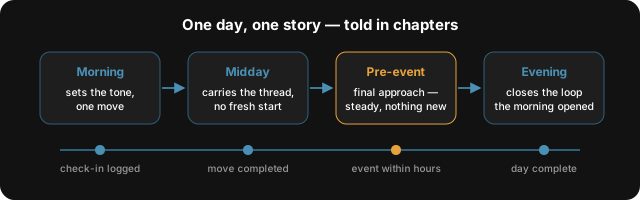
Below the Coach Card: an Events section (proximity coaching activates when you log an event), a 21-day reassessment card when due, and active goals carried in from the Me tab.
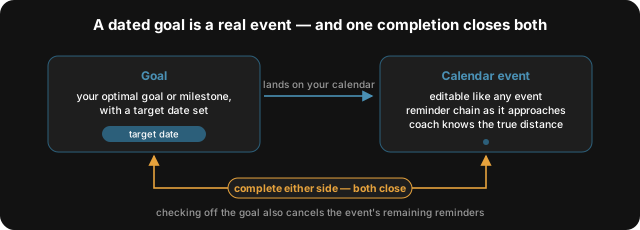
Goals and events are linked. Give a goal a target date — the Goal Blueprint asks for one on your optimal goal and offers one per milestone — and that deadline lands on your calendar as a real, editable event: it gets the same reminder chain as any event you create, and your coach works from the goal’s true distance as it approaches. Completion flows both ways: mark the event complete and the goal completes with it; check off the goal and its event closes and remaining reminders are cancelled.
When you create or edit an event, an optional “If it goes sideways” field captures your recovery plan — one line on how you’ll reset if execution breaks down mid-event. On event day your coach voices your own plan back to you; it doesn’t invent one.
Readiness Check-In
Tapping Start Check-In opens the Mental Readiness flow. Five timed segments, ~5 minutes total. After the last segment, the app routes you to the highest-leverage training available today.
Three of the segments are short brain games — one for speed, one for attention, one for memory — and the check-in uses the same three games every time. A measurement has to compare like with like: a fixed instrument is what makes your day-to-day trend mean something. Variety lives in the Games tab, where the full set of games is for training.
Every game result shows the level it was measured at (like 82 @ L4) — an 80 at Level 5 is a stronger performance than an 80 at Level 2. New games find your level in the first few plays, and those finding-your-level rounds never count against your readiness.
Game-based readiness uses your own comparable history. Once enough history is available, 100 represents your robust personal best, calculated from the upper part of that history rather than one exceptional attempt; points below it show how far this read is below that reference. Before calibration is ready, the app uses the raw result and marks the reading as calibrating. This is not a population ranking, and 75 is not a universal “normal day.” Body Score has its own physiological baseline and should not be read as the same scale.
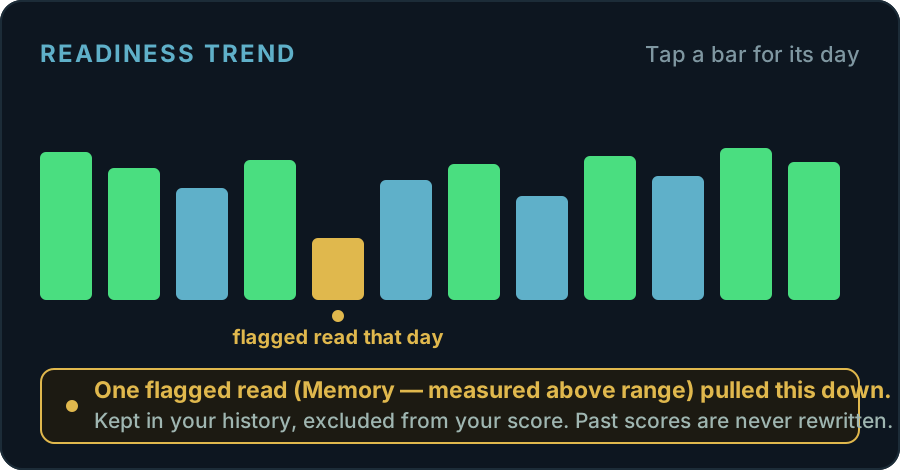
Flagged readings stay visible in your history too. On the Track tab, the Readiness Trend marks any day containing a flagged reading with a small dot under its bar — tap the bar and the day’s card explains what happened: one flagged reading pulling the day down, a genuinely low day across the board, or a day when the app was still calibrating your baseline. Some older days are flagged retroactively (readings taken at unfairly high levels before the difficulty engine was fixed); past scores are never rewritten — the labels are there so your trend reads honestly.
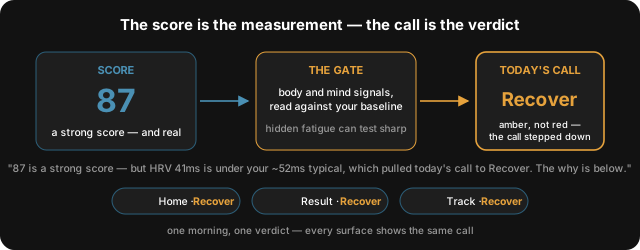
The score and the call are separate on purpose. The number (say, 87) is the measurement — how you performed on today’s check-in. The call word (Peak / Training / Recovery) is the verdict, and it can be gated below the number: a core read in the red, or body-and-mind signals running under your own baseline, will pull a strong score down to a Recover day. Hidden fatigue is real — testing sharp doesn’t rule it out. When a gate demotes the call, the result banner turns amber, never alarm-red on a high number — the score is real; the call stepped down — with a one-line connector that names the actual signals that pulled it: HRV or sleep with your real numbers against your baseline, or reaction speed, attention, memory, or your own self-report by name. And the verdict is reconciled everywhere it appears: Home, the check-in result screen, and the Track gauge always show the same call for the same morning.
The result screen ends with one recommended move — the same engine behind your Coach Card’s daily pick reads today’s fresh sub-scores and surfaces the tool with the most leverage right now. On a Recover day it prefers a gentle regulation tool, or offers nothing rather than prescribing effort. It mirrors the Card’s authority instead of competing with it; when no move fits, the button becomes View Your Trends and opens Track.
The check-in feeds the Readiness Score gauge on Track and contributes to the MIND status a paired Leader sees on their roster.
Train — the tool library
Two sub-tabs. All Tools shows every tool in your tier, grouped by quadrant (DRIVE, FOCUS, REGULATION, EXECUTION). Assigned to Me shows tools your paired Leader or Engineer has pushed to you.
Tool cards show name, tier badge (Free, Paid, or Pro), a one-line description, and a time estimate. Tools above your current tier remain readable so the catalog is legible — opening one surfaces the tier requirement, not the tool itself.
Three tier gates exist: Free is included on every account; Paid (ReFrame, $19.99/mo) unlocks the full toolset across all four areas — Drive, Focus, Regulation, and Execution; Pro ($39.99/mo) adds the Visualization Library, the Precision Training Diagnostic, and the Execution Architecture tools. A Leader pairing covers the Pro delta — your $19.99/mo plus their $79.99/mo Group Rate gives you Pro access for as long as the pairing is active.
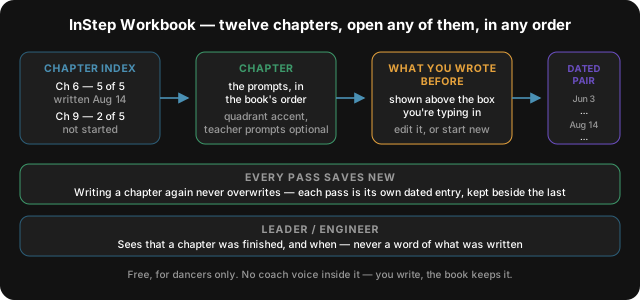
InStep Workbook (dancers). A free workbook in Train for dance domains only — twelve chapters, 161 prompts in the author’s own words, covering identity and belief, focus, emotional regulation, execution, and a closing reflection. It only appears when your domain under Me → Your Arena is a dance style. The chapter index shows every chapter with its purpose, its progress and when you last wrote in it; open any chapter in any order. Writing never overwrites: each pass saves as its own dated entry, a re-opened chapter starts from what you wrote last time, and once two passes exist both answers sit side by side with their dates. The “For teachers” prompts are optional and don’t count toward finishing a chapter. A paired Leader or Engineer only ever sees that a chapter was finished, and when — never what you wrote.
Track — three readiness gauges and the Performance Dial
Track answers one question: am I getting better? Three gauges sit at the top, each measuring a different dimension of readiness.
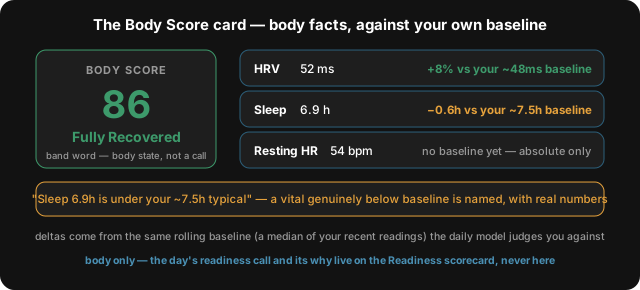
Body Readiness is biological. Sleep, HRV, resting heart rate, recovery — sourced from HealthKit and Oura. Shows a dash until you connect a wearable. Tap the BODY tile and the Body Score card opens: your score with a body-domain band word — Fully Recovered, Recovered, Recovering, Run Down, or Depleted — and today’s vitals, each with a delta against your own typical (a rolling median of your recent readings, the same baseline the daily model judges you against). A delta only appears where enough of your history exists to compute a baseline, and when a vital runs genuinely under your typical an amber note names it with the real numbers. The card is body-only by design: it reports your body’s recovery state and never the day’s readiness call — that explanation lives on the Readiness scorecard.
The source depends on your platform and the connections you enable. On iPhone and iPad, Apple Health can supply readings written by supported wearables; Android uses its supported Health Connect path. Check Settings → Health & Wearables and the source shown on your Body Score to see what is connected and available. Data availability depends on permissions and what the device actually records. On supported iOS builds, Today’s Read is also available as a home-screen widget; Siri and Apple widgets are separate from Android’s features.
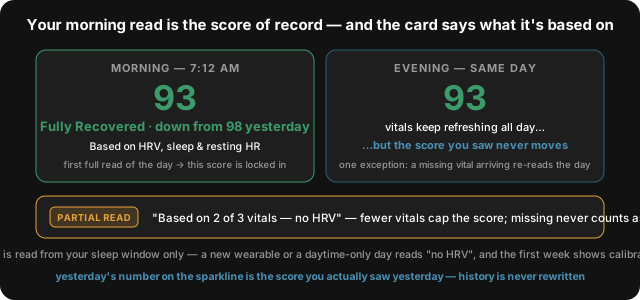
Four honesty mechanics on that card are worth knowing. Your morning read is the score of record: the first full read of the day (sleep plus at least two vitals) locks in the score you saw — later syncs keep the vitals fresh but never move the number, and the only re-read is a missing vital arriving. The coverage line says what the read is built on — “Based on HRV, sleep & resting HR,” or “Based on 2 of 3 vitals — no HRV” with an amber PARTIAL READ tag; a thinner read scores conservatively, and a missing vital never counts as zero. A material day-over-day move gets named — “down from 98 yesterday,” measured against the score you actually saw, consecutive days only. And HRV is read from your sleep window only, the way recovery wearables do it — so the first week after this change (or after a new wearable) shows the HRV leg as calibrating while your overnight baseline builds, and a day with only daytime samples honestly reads “no HRV” instead of borrowing daytime numbers.
More than one wearable? It captures from all of them. Apple Watch, Oura, and WHOOP each feed in, and for every night Peak Coach uses the device it can score most confidently — usually the one you wear most consistently — comparing each against its own baseline so different sensors are never mixed. When two or more devices agree on the night, the card says so; that agreement is what makes a reading trustworthy, and when they disagree it leans on your most consistent device and tells you. You never have to choose, but a specific source can be set in Settings → Health & Wearables. Any tile on the card — HRV, resting HR, sleep, heart rate, and, when your device records them overnight, Respiratory Rate and Blood Oxygen — opens its own 7/14/31-day history.
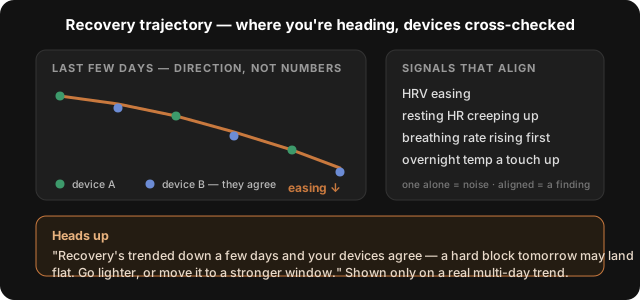
Where it’s heading, not just where it is. Beyond today’s number, the card watches the direction of your recovery over several days — across HRV, resting heart rate, breathing rate, and overnight temperature — and when those signals line up and your devices agree, it gives you a forward-looking heads-up so you can act in time: go lighter, or move a hard session to a window you’ll actually be primed for. Overnight breathing rate and temperature often move first, a day or two before you feel it. You only see the line on a real multi-day trend backed by more than one signal — a single noisy day won’t trigger it — and it never shows a raw number, only the direction and a suggestion. Your coach reads the same trajectory to shape how hard it points you that day.
Readiness Score is neurological. Derived from your most recent Readiness Check-In. Drives the MIND column on a paired Leader's roster. The level word on this gauge is the reconciled call — the same verdict the check-in result screen and Home show, gates included — so Track can never call a Recover-gated morning “Peak.”
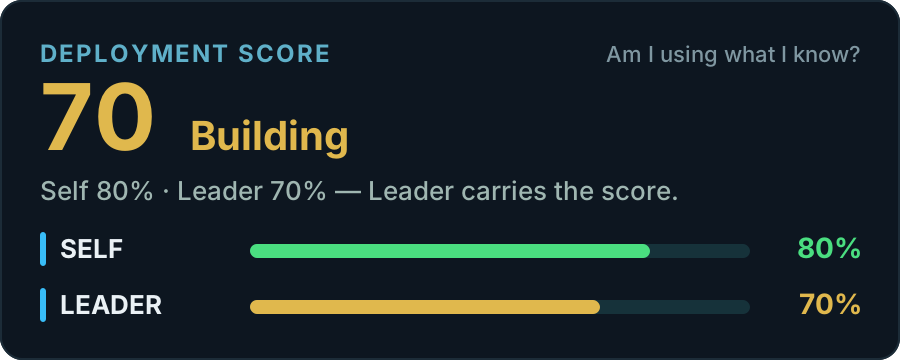
Deployment Score is what you actually deploy under pressure. Your self-rating (the chips on Track) carries it until a Leader rating exists; once it does, the Leader rating carries the score. You'll still see both as “Self X · Leader Y,” and the gap between them is useful signal in its own right.
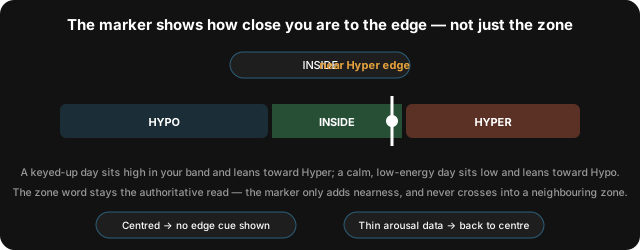
Below the gauges, a Window of Tolerance card is always visible just above the Performance Dial: a Hypo / Inside / Hyper bar with a marker showing where today’s check-in placed your activation state. The marker slides continuously within your zone to show how close you are to an edge — not just which zone you’re in — so a calm, low-energy day sits lower in the band and a keyed-up day sits higher, and when you’re leaning toward an edge a small cue beside the zone chip names it (for example “Inside · near Hyper edge”). The zone word stays the authoritative read; the marker only adds nearness and can never cross into a neighbouring zone. When you’re sitting comfortably in the middle no edge cue is shown, and if a check-in didn’t capture enough of your energy and stress to place you precisely, the marker honestly falls back to the centre of your zone rather than inventing a lean. Inside the window is where trained skills deploy; Hypo and Hyper are the two directions they slip. No check-in yet today → the card says so and offers the check-in; it never guesses a zone.
Under it, the Performance Dial is a 2x2 grid showing 7-day trajectory per quadrant. Below that, the App-Calculated panel shows your sustained level (Levels 1–10) — the slow-moving read on architecture, not today's reading.
Performance Scan — three depths of assessment
The Performance Scan card on Track opens the assessment surface. Three depths exist:
- Performance Dial — rolling reading on Track. Updates from your sessions, games, and check-ins.
- Performance Scan — your latest assessment (Drive, Focus, Regulation, Execution, each 0–100). The results card leads with a plain-language read of where you stand, names your lowest lever only when one is genuinely holding you back, and gives you one next step. If every area is at or above your level, it tells you that too — and points you at raising the stakes rather than inventing a weakness.
- Deep Performance Scan (Full Performance Profile) — a deeper full assessment with targeted tool recommendations. Reached from the results card's next-step button.
Your Scan is the snapshot from the assessment; your Dial is the live reading that keeps moving between scans. The card shows you, in one line, when the two have drifted apart — and stays quiet when they agree. The 21-day reassessment reminder fires on Home automatically when 21+ days have passed since your last scan.
Your performance signature. Once you’ve completed a Sub-Domain Module (the deepest scan), the results card also shows a signature graphic of your sub-skills — the shape of where you’re sharpest and the one with the most room. It names your edges in plain language and points you at your next lift with the tool for it. This is where the picture gets specific to you, even when your surface score is at ceiling. Pro unlocks the full breakdown of all 28 sub-skills, grouped into four collapsible system sections — Drive, Focus, Regulation, and Execution — each with the system’s average in its header and a plain-language description of what that system does. The section holding your limiter opens expanded and wears a MOST ROOM pill; every sub-skill carries a one-line meaning, and the “Where you’ll gain the most” block names the limiter precisely — what it means, its system and score, and how it sits against the rest of that system.
Games — cognitive training
18 short cognitive drills. Each game maps to one or more quadrants and feeds the Performance Dial on Track. Filter chips: All, DRIVEN, FOCUSED, REGULATED, EXECUTE. This is the training surface — games here adapt upward as you improve, stepping back whenever a level proves beyond your range. (The daily check-in uses a fixed set of three games instead, so its readings stay comparable — see Readiness Check-In above.)
The Games tab uses the past-tense state form (DRIVEN / FOCUSED / REGULATED / EXECUTE) while Track uses the noun form (DRIVE / FOCUS / REGULATION / EXECUTION). Same four quadrants — Track labels capacity, Games labels achieved state.
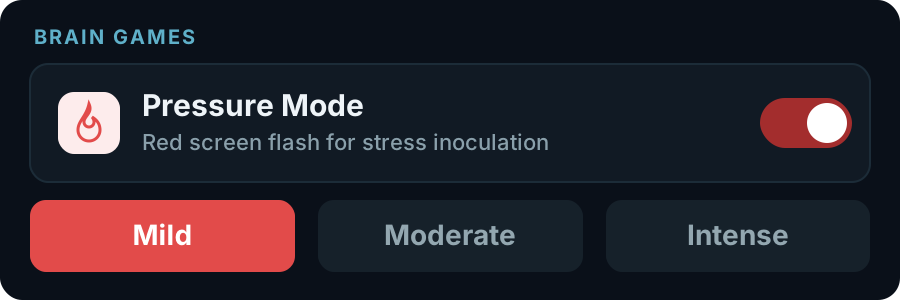
Pressure Mode is a Settings toggle under Brain Games. When on, games briefly flash a red overlay during play to simulate stress. The mechanism is stress inoculation — training cognition to hold under sudden disruption. Off by default; choose Mild, Moderate, or Intense once it's on.
Me — profile, subscription, and Settings
The Me tab is the longest screen in the app. The profile header shows your avatar, name, email, tier badge, and account code. Below it: Edit profile (a 5-step editor), Subscription, Limiter Words, My Practice (Journal + Goals), My Team (pairings), Achievements, Refer a Performer, and a Settings card at the bottom.
Settings opens a separate screen grouped as Account, Coaching & Training (Sessions, Games, and AI & Voice — Coach Voice, Coach Style, Voice Input), Health & Devices, Notifications & Team, Privacy & Security (Privacy & Sharing, Share with support, Face ID), Appearance (Light / Dark / System), and Help & About.
More than one account on one device. You can add and switch between several accounts from Settings; switching restores that account’s own data — your history is not lost. If a switch finds your saved session has expired, the app asks you to sign in to that account again; the account is not deleted or removed, it just needs a fresh sign-in. Each account keeps its own game progress and levels, so a second account starts its brain-game ladder from placement rather than inheriting another account’s levels.
Tool sessions
Each tool has a defined purpose. Its questions, practice and saved outcome follow that purpose; Coach help remains available along the way.
Follow the tool’s guided path
Each tool has a specific purpose and a guided path to a useful outcome. Structured tools ask focused questions, let you review and edit your words, and save the information the tool is designed to gather. Use the Coach button when you need help with the current question; return to continue the tool. Some tools are timed practices, games or specialized experiences, so they do not all use the same screens or number of steps. Leaving a required question unanswered does not manufacture a completed outcome.
Read the tool’s objective, give the information it asks for, and review your answers before saving. Keep meaningful detail in your own words. Coach help supports the current task; it does not replace the tool’s completion steps. An unfinished session is different from a completed tool outcome.
Where what you build goes, and how it is read back
- Your next event — a cue, the state you want to walk in with, or what you do the moment the thing that pulls you off shows up.
- This week — a step with a day on it. On that day your Coach Card asks it back: your own words, then “done?” Yes closes it; Not yet moves it to tomorrow, once. Train also names it above the coach’s move as “Today: …” or “Tomorrow: …”.
- Living Identity on Track — a reframe, a belief you tested, or a label you named.
Where a tool offers a saved-outcome read-back or a before-and-after measure, use it to compare what you tried with what was recorded. Not every tool uses the same measures or reopening flow. A comparison does not prove the exercise caused a change; skipped or missing measurements should remain missing.
Some tools ask the same short question before the work and again after it, or around a timed rep; that pair is the measurement. You can skip it, and skipping leaves that end empty rather than filled in. A timed rep only runs against a pull you actually wrote — your last leaked line, or the pull on your last Blueprint — and is skipped rather than run against an invented one.
One cue belongs to one moment. Drift and Return, Attention Anchor and Cue Word Training each set the cue for your next event, and so does your Blueprint, so the most recent one you wrote is the one that stands — and the next Blueprint names it back (“Your cue from Attention Anchor: … Keep it?”) instead of replacing it quietly.
Your debrief opens itself
You don’t have to go looking for the debrief after an event. For an event in the last four days that you haven’t debriefed yet, it opens itself the next time you open the app — at most once a day, and never while you already have a tool open.
The header carries Not now, which is a real answer and is remembered: say it on two different days and that event is not offered again.
What the coach knows
Coach Chat helps you understand your current recommendation and connect practice to your domain, goals and events. It can use saved assessments, check-ins and tool outcomes available to the app; it cannot know facts you have not shared or treat missing information as evidence. Open it from the Coach Card or a tool’s Coach button, ask a question in your own words, and return to your activity when ready. With AI memory on, this conversation is also processed online to make it searchable.
The deterministic engine selects recommendations from the app’s available facts. Local language models support conversation and explanation; they do not make missing facts known. A tool’s saved output can inform later coaching, but saving a completion does not by itself prove improvement or causation.
Your direction and practice
Use these controls to keep your coaching context current.
Assessments and today’s state
Baseline (P1), Performance (P2) and Precision (P3) provide progressively deeper assessment evidence. When available, the app prioritizes Precision, then Performance, then Baseline for the diagnostic read. That priority is not an instruction to complete them in reverse order: follow the assessment offered for your account. A daily Readiness Check-In describes today’s state and does not replace these assessments.
Review a goal saved by an older version
An older app version may have saved goal text in your profile without creating a manageable goal record. Review that text in My Goals. Keep as active goal creates an undated goal with the same words; it does not guess a deadline or domain. Remove old entry asks for confirmation and clears only that older entry. Neither action completes other goals or creates achievement evidence. Remove is not Archive.
Mental Training Exercise and Visualization
Mental Training Exercise helps you build a specific rehearsal Blueprint from the information you provide. Review and save it before moving into rehearsal. Visualization turns the saved material into a rehearsal experience; when you change the script or voice, the matching audio needs to be prepared again. Follow the player’s status rather than assuming an older recording reflects your edits. If enhanced audio is unavailable, the app may offer device speech; it should identify that fallback.
The app on your device
What the mobile app does when the network isn't there, where a tap or a link lands you, what runs on the phone itself, and how the layout adapts to the screen it has.
Offline, links, and notifications
After initial sign-in and required downloads, the app can use the data already saved on your device. Local actions are queued for synchronization when a connection is available. Some functions still need a connection, including new downloads and online audio or AI features. A cached visualization recording is different from a new recording that has not yet been prepared. Home waits for its initial available context to settle before showing the Coach Card; it should not replace a visible card simply because another startup response arrived.
Tapping a notification takes you to the thing it is about, not just to the app. The evening “Today’s card” reminder opens the move it names; an assignment reminder opens the assigned tool; an event-window nudge opens the tool for that event or the event itself; the reassessment nudge opens your diagnosis. This holds whether the app was already running or the tap is what launched it.
Links in our emails and messages go through app.peakmindmechanics.com/open. On a phone with the app installed and up to date the link opens the app at that screen; otherwise the same address offers “Open in Peak Mind Coach,” “Get Peak Mind Coach,” or “Continue in browser.”
The coach on your device
The app downloads Peak Mind’s local language model separately from the app itself, approximately 1.1 GB over Wi-Fi. The installed file is checked before use. Updating the app in place preserves its data and downloaded model; uninstalling removes local content and requires the model to be downloaded again. A downloaded file, a ready adapter and a successful model response are different states; follow the download and availability messages.
Apple Foundation Models can provide on-device language support on compatible iPhone and iPad devices when Apple Intelligence is available. They are separate from Siri and do not give Siri access to your app data. The app selects an available local adapter for the job; Peak Mind’s downloaded model supports domain coaching, while other language tasks can use Apple’s model. Android uses its own supported local model path and does not need Apple Intelligence. An app version number is separate from the phone’s operating-system version.
Install updates from your store or testing track without uninstalling; an app-content update can change screens, but a launcher-icon change requires a new app build. The local model download is separate from the app update.
A card on Home, “Help improve your coach,” offers one optional sharing choice: “Improve Peak Mind’s own coaching model.” It is off unless you turn it on. Opting in lets your completed tool sessions — pseudonymised — help train the next version of the model that ships on every device; your own coaching is unaffected and nothing you write is shown to a person. Turn it off any time under Me → Settings → Privacy & Sharing (Internal research); withdrawn sessions are excluded from the next build, though the model already on your phone cannot be un-trained. “Not now” puts the card away and leaves the setting off.
Siri, Shortcuts, and the widget (iOS)
On iPhone and iPad running iOS 18 or later you can drive the app by voice. Say the app’s name in the phrase — Apple requires it: “Start my check-in in Peak Mind Coach,” “Open my performance scan in Peak Mind Coach,” or “What’s my read in Peak Mind Coach,” which speaks today’s call, readiness and move without opening the app. From app version 1.4.0, “Start today’s move in Peak Mind Coach” opens the move on your Coach Card — the tool or game itself.
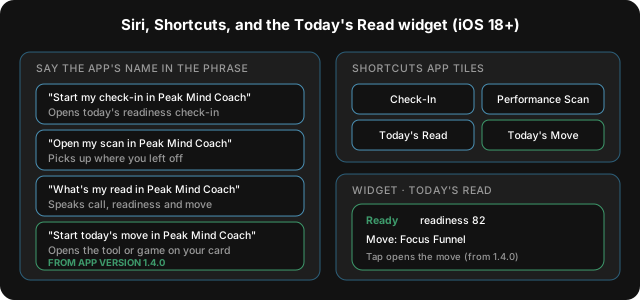
The same actions appear as tiles under Peak Mind Coach in Apple’s Shortcuts app, where they can join a routine or a Shortcuts widget. The Today’s Read home-screen widget shows your call, readiness and move at a glance; from 1.4.0 tapping it opens the move. Siri and the widget do not apply on Android.
On iPad, foldables, and larger screens
The layout follows the width the app actually has. Below about 600 points wide it is the phone layout. From 600 to 840 — an iPad in portrait, an iPad mini, an unfolded foldable — screens split into two panes and the tab bar stays as your navigation. Above 840 — an iPad in landscape or a widened window — a persistent sidebar replaces the tab bar and the Leader and Engineer surfaces open in widescreen.
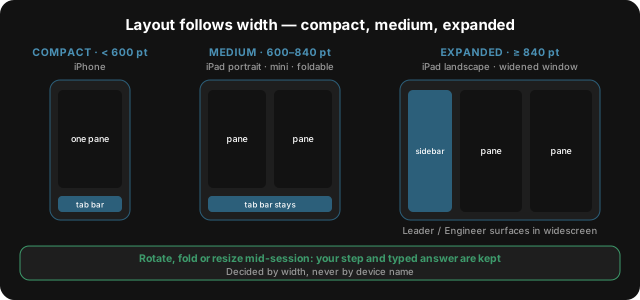
Supported tool layouts keep your current step and answer when the available space changes. Short guided plans use a question-and-answer layout in iPad landscape and one column in portrait. Android and iOS builds share compatible coaching improvements, while native features depend on the platform and installed build; update from your own store or testing track without uninstalling.
How pairing works
Pairing with a Leader or Engineer is what activates Deployment Score and the Assigned to Me sub-tab. The flow is identical regardless of which professional reaches you.
Receiving a pairing code
A Leader or Engineer generates an 8-character pairing code from their portal. They send the code or QR/share link directly. Tap My Team → Connect on the Me tab and enter the code, or follow the share link from your phone. You also have your own connect code others can use to reach you.
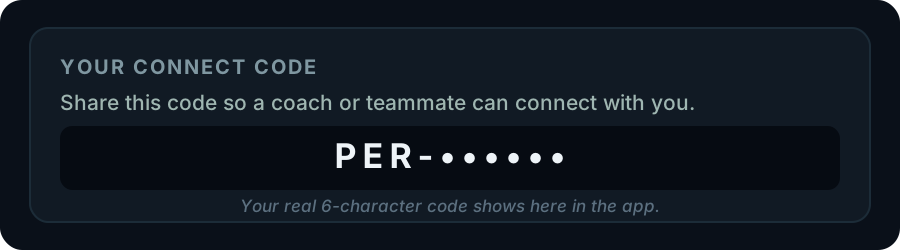
After confirmation, the pairing appears in My Team. Your tier upgrades to Pro for the duration of the pairing under a Leader's Group Rate, or to full feature access under an Engineer.
The Performer's Track tab averages the most recent Deployment rating from each paired Leader if you have more than one. You can be paired with a Leader and an Engineer at the same time without conflict.
What your professional sees — consent flags
Four consent flags on your profile gate which sections of your detail page populate for a paired Leader or Engineer.
- Share Readiness — daily check-in scores, Readiness Score, Body Readiness. On by default.
- Share Assessments — Performance Scan and Deep Performance Scan results. On by default.
- Share Tool Progress — tool completion history and scores. On by default.
- Share Goals — goal blueprint, BTE 3C structure, Goal Reality Check results. Off by default.
Toggle any flag at any time. The change applies on your professional's next page load. When a flag is off, that section reads "Performer has not opted to share this data."
Your journey
The product is designed to make you capable of independence, not to retain you indefinitely. Three sections explain how the system reads your progress and what graduation does.
Graduation
How do I know I'm progressing?
The App-Calculated panel on Track surfaces a sustained level per quadrant on a 1–10 scale, with a HIGH / MID / LOW band badge. Levels move slowly — one bad day does not drop a level.
The system works one area at a time. It usually starts with Regulation — your nervous-system base that the other work builds on — then Drive, then Focus, then Execution. That order can shift when your data warrants it.
When an area clears all four integrity gates (next section), the system shows a graduation card and the next area opens up. Tools tied to the completed area stay accessible. If that area later slips, the system re-opens it — it keeps the graduation signal honest rather than locking a moment in.
Graduation
Preparing to graduate — the four integrity gates
Graduation is gated, not permissive. Four checks must all pass before the system promotes a quadrant or whole-user graduation triggers.
- It held over time. Your score in that area stayed high for several weeks running — three good weeks beats one good week.
- You did the work. You completed the tools for that area, and you did them well (not just tapped through).
- The signals agree. What you report, what your behavior shows, and your Leader/Engineer ratings (when there are any) all point the same way.
- No backsliding. No recent slip in that area, and no open flag from an Engineer.
Most people build that stability over months, not weeks — there’s no fixed timeline. When all four areas have cleared the checks and your overall scan is high enough and holding (with no single area lagging), your three-screen Graduation Sequence runs: status summary, alumni offering, tune-up path.
Your account stays active after graduation. Daily check-ins become optional. Your tier remains active until you change it. Alumni-only tools become available.
Graduation
Returning for tune-up
The Monthly Tune-Up is a Pro-tier alumni-only tool. Once-monthly cadence by default. Tune-Up is the alumni reactivation path — not failure, regression, or backslide.
Reactivation is trigger-anchored. A significant performance event, a life transition, or moving into a new domain (an athletics alumnus stepping into a leadership role) re-engages you without restarting onboarding. Your baseline scores, BTE goal history, and tool-completion record persist across the alumni period.
Alumni status does not change tier. If you downgrade to Free, alumni status persists; Tune-Up access requires Pro.
Questions
Need more help?
General support
support@peakmindmechanics.com